Tool guide
Bet Tracker guide
Your bets, balances and bonuses in one place, per bookmaker account and per account holder. Keep the tracker open in another tab and go straight to the task you are on.
The tracker comes with a free Sharkbetting account, up to 50 bets. Pro has no limit.
Quick start
From nothing to your first settled bet, in four steps.
- Add your accountIn Settings: Add Owner, Add Bookmaker, then Add Account with what is in it today.Show me how
- Log the back bet and the layOn the Dashboard: New Event, then Add Bet once for each side.Show me how
- Settle itClick the result on the market, or let Auto-settle look it up.Show me how
- Read the balanceBankroll shows the account with the result booked on it.Show me how
- Laying on SharkBetX? The lay logs itself.
- Betting from the Oddsmatcher? Log it in one click.
- Betting for more than one person? Set up owners first.
The tracker at a glance
In the app the page is called BetTracker. It has five tabs.
- Dashboard
- Your open events, recent results, totals and a line per account.
- Bankroll
- The balance of every account, with its deposits, withdrawals and bonuses.
- Exchanges
- Your SharkBetX bets and their history.
- Statistics
- Figures per account, per owner and per week.
- Settings
- Owners, bookmakers, accounts, currency, export and import.
Three words to know
An owner is the person an account belongs to. A bookmaker is a name and a currency. An account is one owner at one bookmaker, and it is what a bet, a bonus or a deposit is booked on. See it as a picture.
Add a bookmaker account and its opening balance
Where: Settings, then the tabs Owners, Bookmakers, Accounts and General
Add yourself as an owner
On the Owners tab, click Add Owner, type a Name and click Create Owner.
Add the bookmaker
On the Bookmakers tab, click Add Bookmaker. Type the Name, pick the Currency the account is held in and click Create Bookmaker.
Currencies: USD, EUR, NOK, GBP, SEK or DKK.
Add the account with its opening balance
On the Accounts tab, click Add Account. Pick the Owner and the Bookmaker, and type what is in the account today under Initial Balance.
Leave Status on Active and click Create Account.
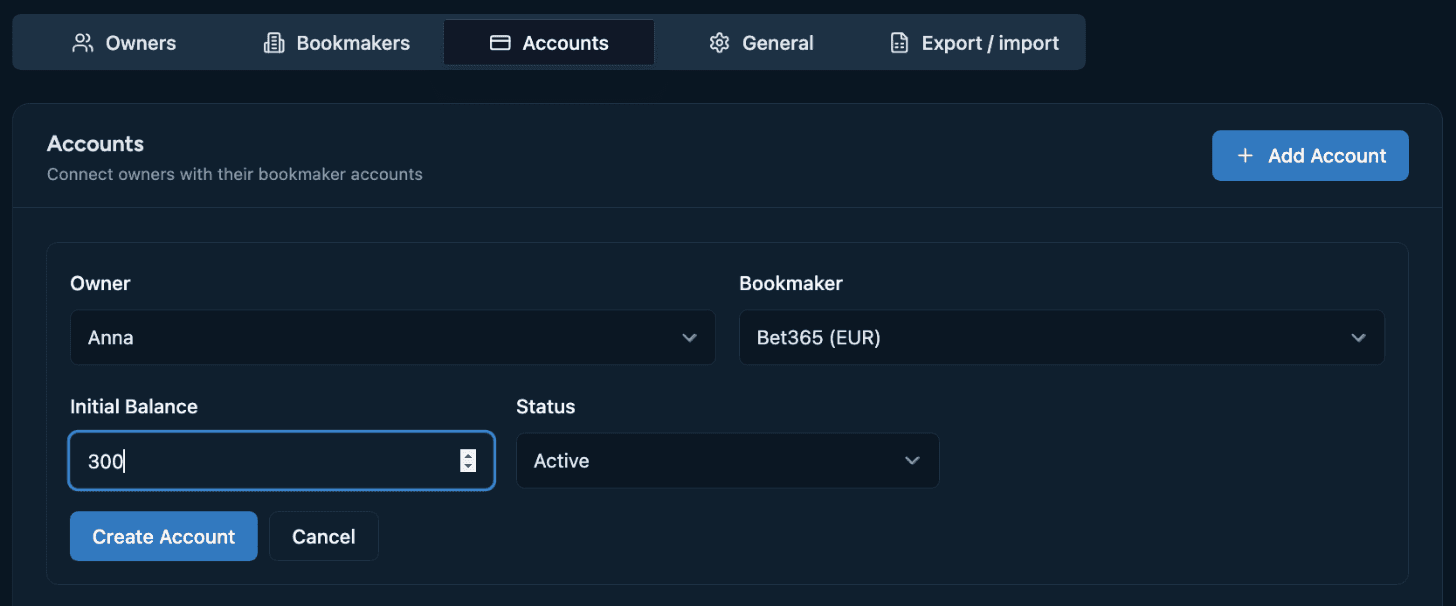
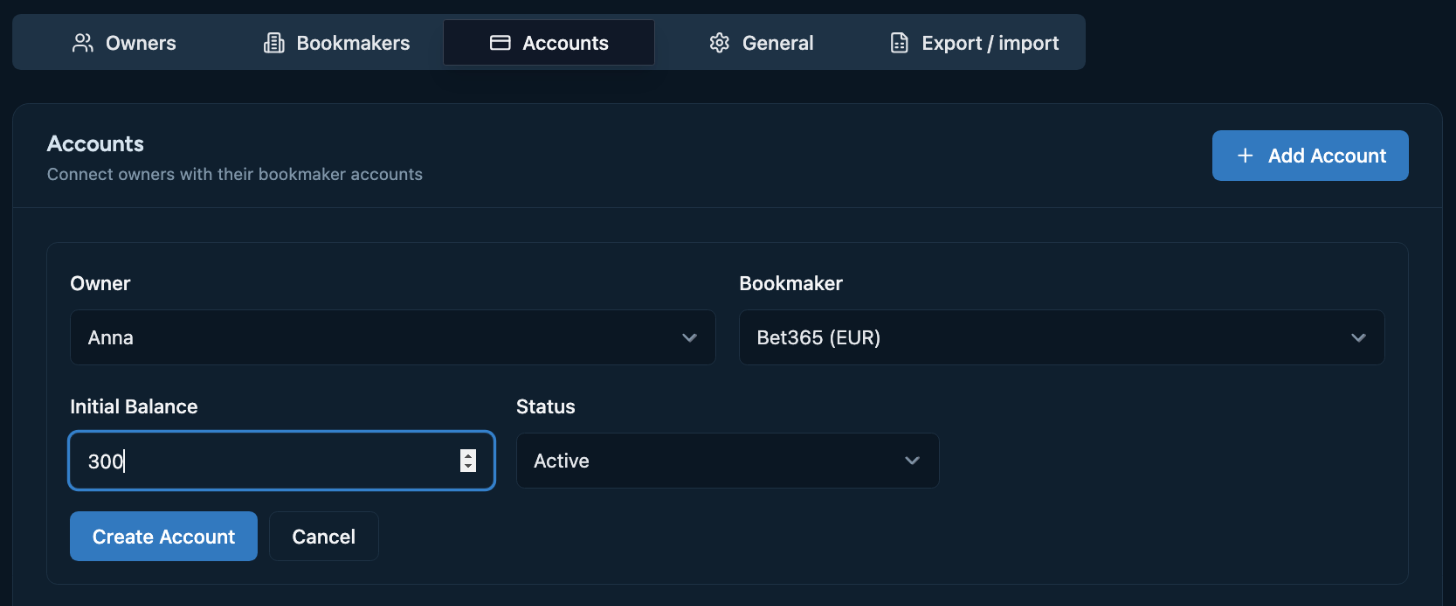
Here an account at Bet365 is added for the owner Anna, with 300 EUR in it. Swipe sideways to see all of it, or tap to open it. Good to know
Add Account stays greyed out until you have at least one owner and one bookmaker. An owner can have one account at each bookmaker.
Set the currency for your totals
On the General tab, set Default Currency to the currency you want your totals in.
Default Commission is the exchange commission used for lay bets; it starts at 3%.
Correct a balance later
Click the pencil on the account's row, change Current Balance and save. The difference is recorded as an adjustment.
Log a back bet and its lay
Where: Dashboard, New Event
Create the event
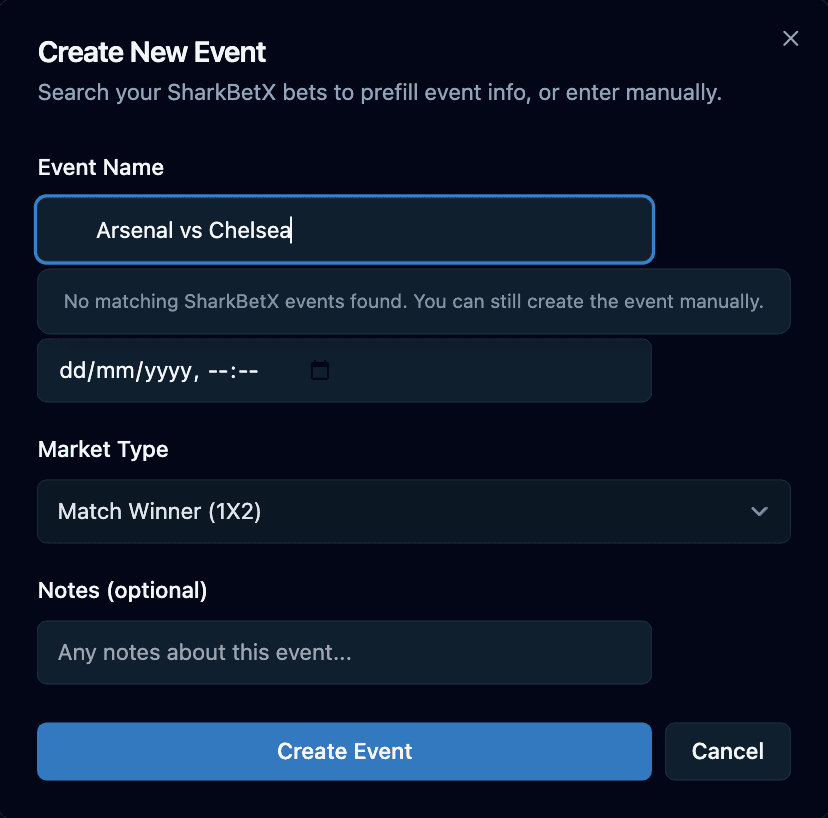
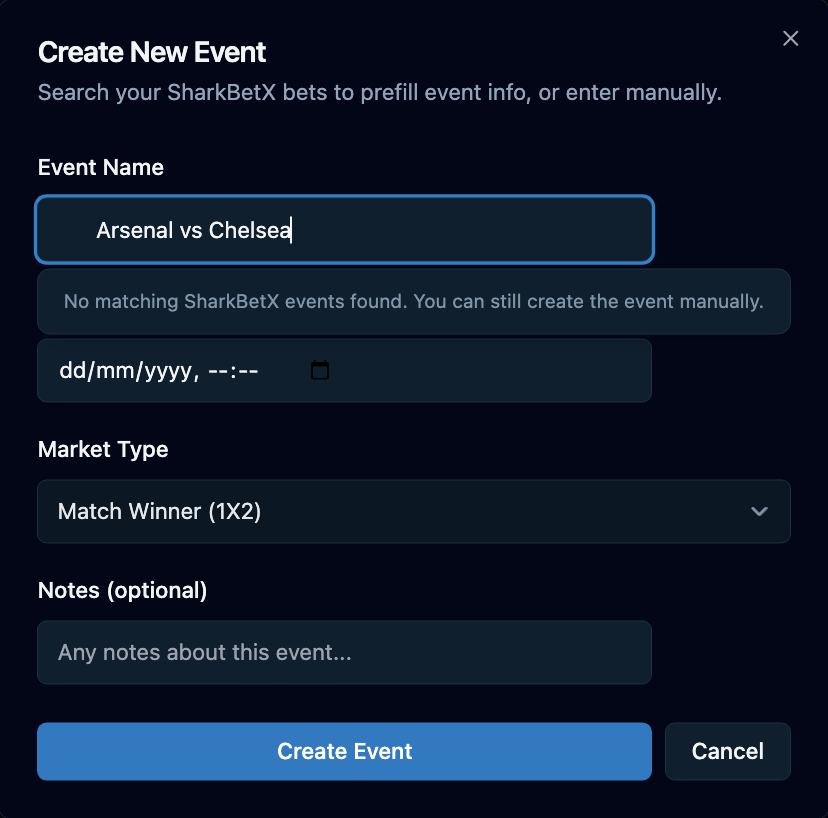
Click New Event. Type the Event Name (for example Arsenal vs Chelsea), pick the Market Type and click Create Event.
Market types and labels
The types are Match Winner (1X2), Over/Under, Both Teams to Score, Draw No Bet, Asian Handicap and Other.
Over/Under, Asian Handicap and Other also take a Market Label, such as Over/Under 2.5. Event Date is optional.
Add the back bet
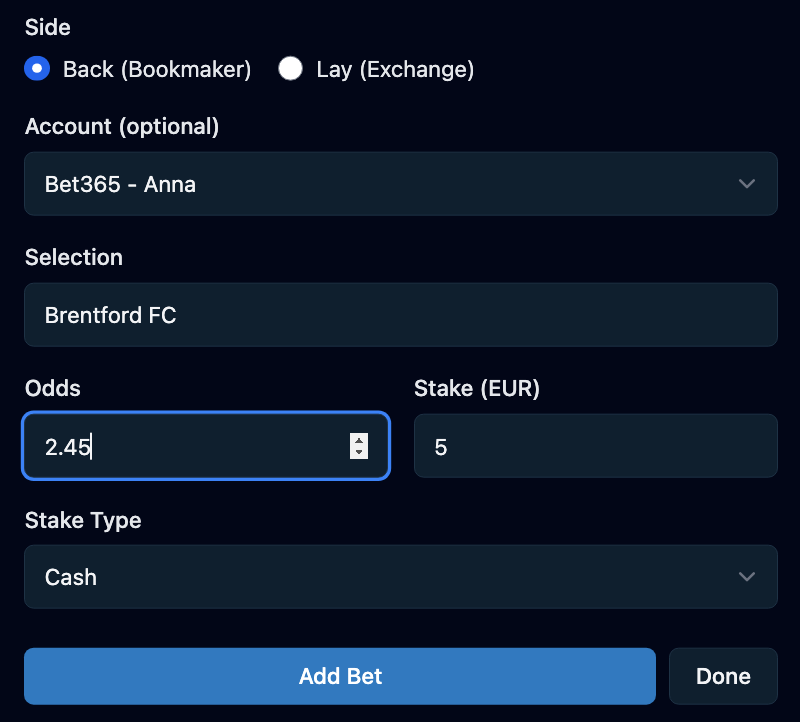
The Add Bet window opens. Keep Side on Back (Bookmaker), pick the Account and the Selection, and enter Odds and Stake.
Stake Type is Cash for a normal bet. Click Add Bet.
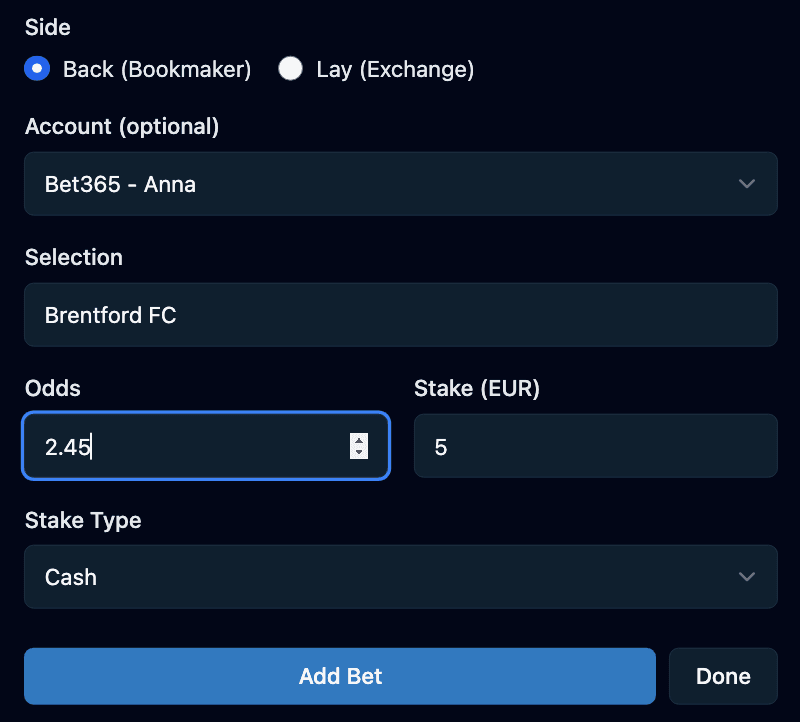
The Stake label follows the currency of the account you pick. Good to know
Account is marked optional and starts on No account. Pick one anyway: a bet without an account is not booked on any balance.
Add the lay
The window stays open and says Bet added! Add another or click Done.
Switch Side to Lay (Exchange), pick the same Selection and enter the lay Odds and the lay Stake.
Type the exchange's name under Exchange. Click Add Bet, then Done.
Good to know
The lay Stake is the backer's stake, not your liability. A lay you type in has no Account field: it counts in the market's result, but it is not booked on a bookmaker account.
The market now shows Potential Profit by Outcome: what you make or lose on each result with both bets counted.
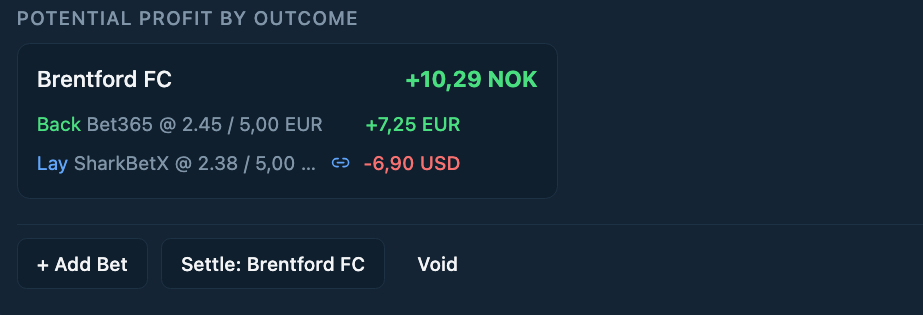
To add another bet to the market later, click + Add Bet on it.
Log a SharkBetX lay
Where: Rewards page once, then the Dashboard
When you lay on SharkBetX, you do not type the lay at all.
Link your wallet, once
Link and verify your SharkBetX wallet on the Rewards page.
Until you do, the Exchanges tab shows Connect SharkBetX with a Link SharkBetX wallet button.
Place the lay on SharkBetX as usual
It is added to your tracker automatically within a couple of minutes and shows on the Dashboard.
Add the bookmaker side
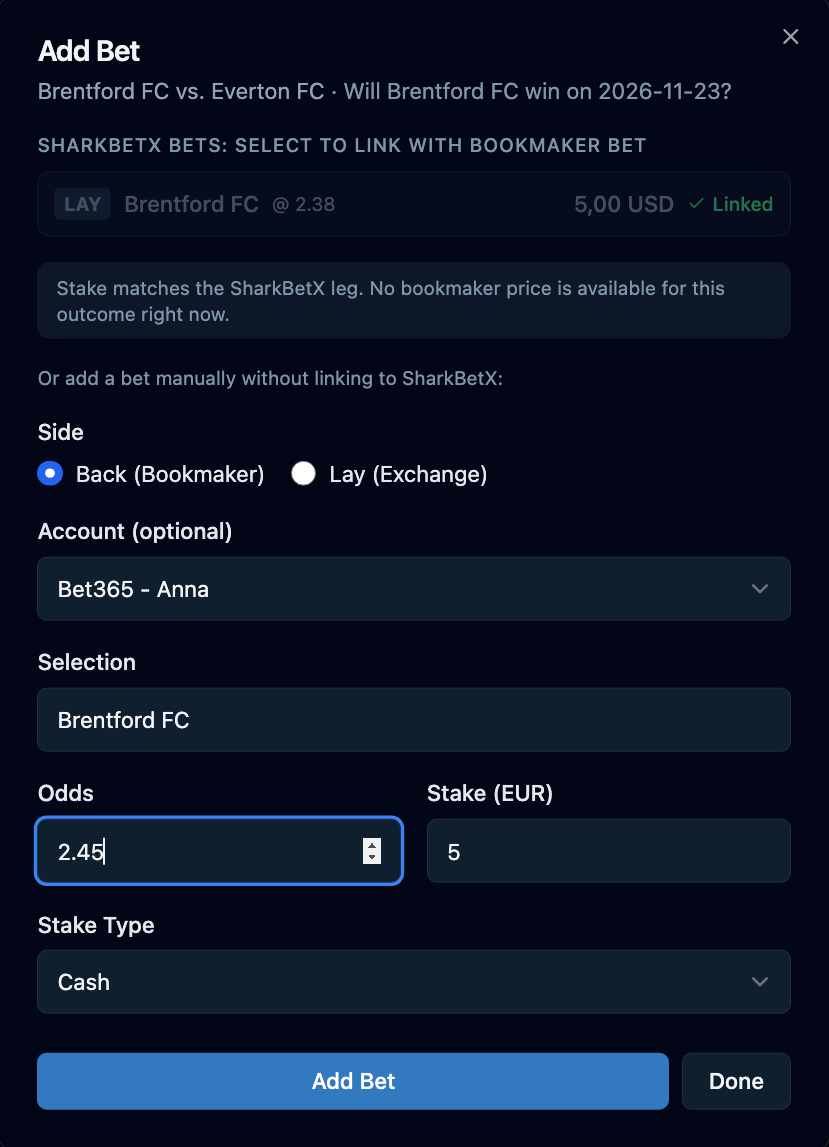
On that market, click Add bookmaker leg. The Add Bet window opens on the back side with the stake matched to the SharkBetX bet and, when there is one, the best bookmaker price at that moment.
Pick the Account, correct Odds and Stake to what you placed and click Add Bet.
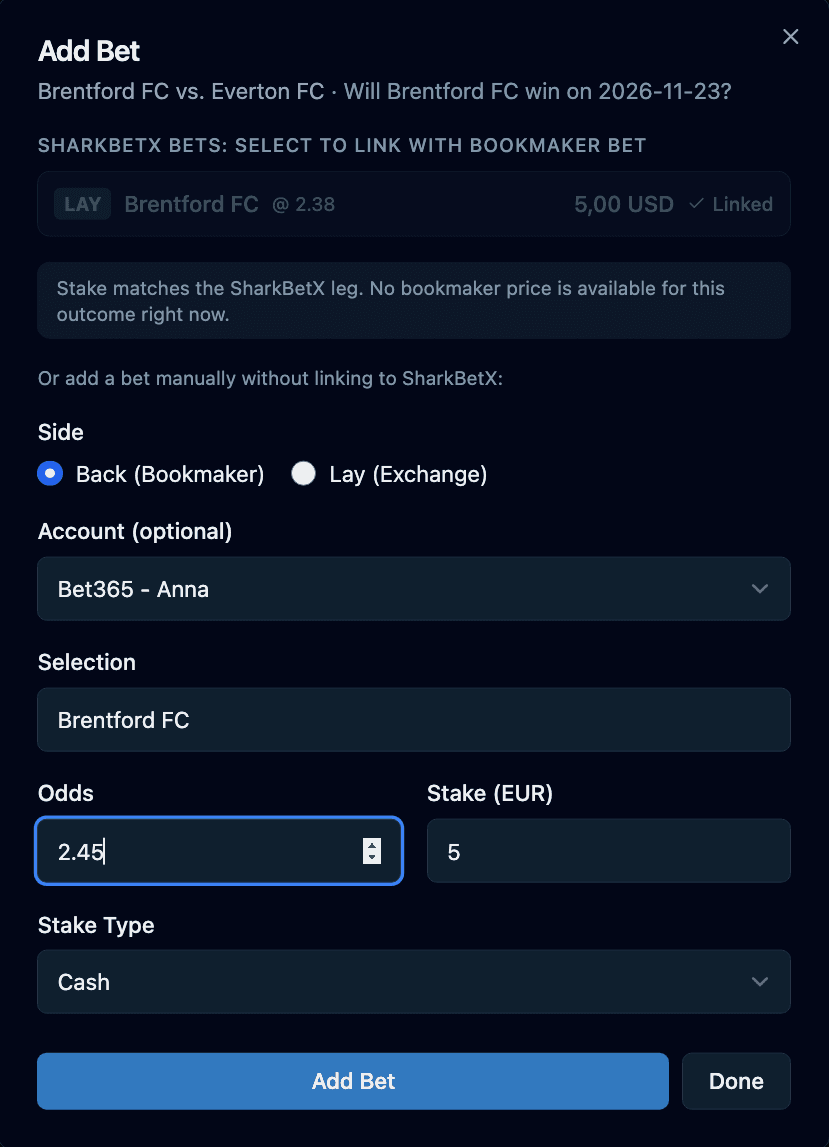
The SharkBetX lay is shown as Linked at the top. Here no bookmaker price was available, so Odds was typed in.
SharkBetX bets that are not in your tracker yet
The Dashboard can list them under SharkBetX open positions and SharkBetX bets to log. The Exchanges tab lists all of them under Bet History.
Log on a row opens the same window with the SharkBetX bet selected. The button then reads Add Bet Pair and saves your bookmaker bet linked to it.
See your SharkBetX balance in Bankroll
When the tracker shows Track your SharkBetX balance, pick an Owner and click Add SharkBetX. That puts a SharkBetX account in Bankroll.
Once your wallet has reported its balance, the account follows the wallet and reads Synced from your wallet. SharkBetX amounts are in USD.
New to the exchange? Start with the SharkBetX guide.
Log a bet from the Oddsmatcher
Where: Oddsmatcher, the calculator on a row
Open the calculator
In the Oddsmatcher, open the calculator on the row you are betting.
Place the bet, then click Log to tracker
Place the bet at the bookmaker first. Log to tracker is under the calculator.
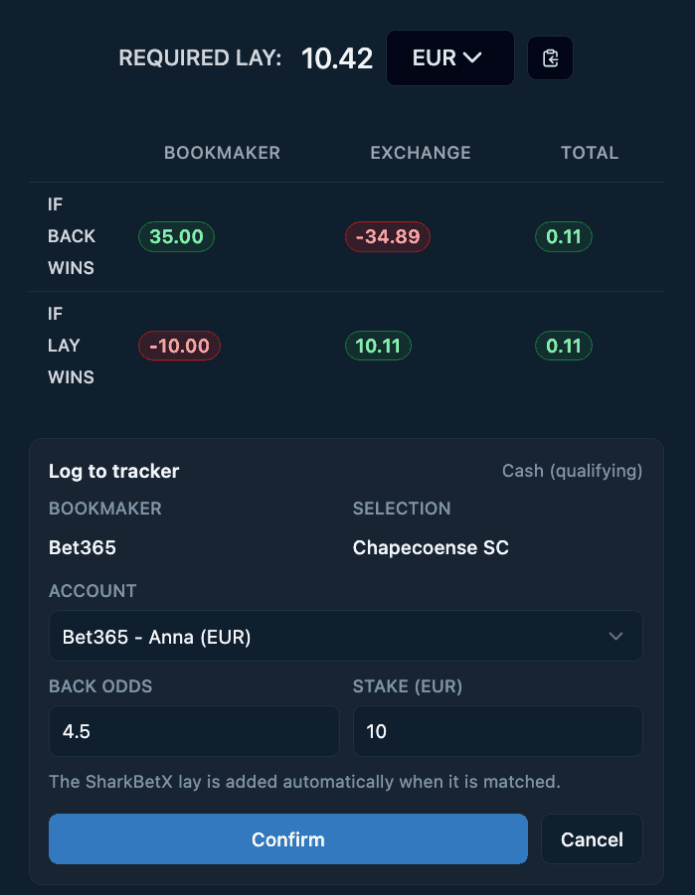
The panel opens under the calculator's result table. Check the panel and confirm
Bookmaker and Selection come from the row. Account is your account at that bookmaker. Back odds and Stake come from the calculator.
Correct them to what you got and click Confirm.
More than one owner at that bookmaker?
Account starts on the one you logged a bet on most recently. Check it before you confirm.
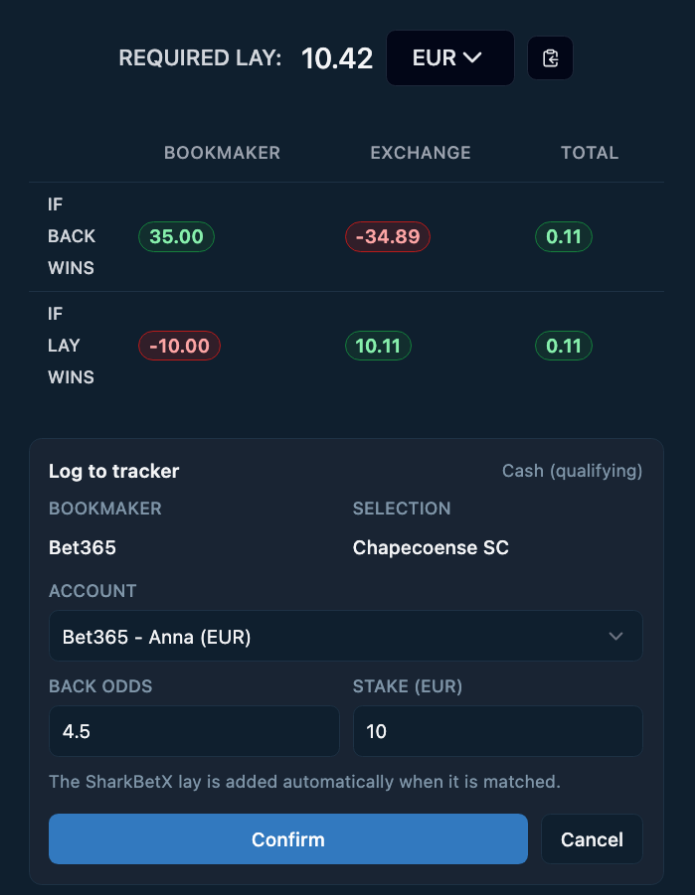
No account at that bookmaker yet
Account reads New account on that bookmaker and you pick the New account currency. The account is created under your first owner.
Free bets, Betfair lays and SharkBetX lays
The calculator's mode sets the stake type: a qualifying bet is logged as Cash, a free bet as SNR or SR.
A Betfair lay is logged in the same step: the panel adds Lay odds, Lay stake and Comm. %.
A SharkBetX lay is not typed here. With a linked wallet it is added automatically when it is matched, on the same event.
Settle a bet
Where: Dashboard, the event under Open Events
Settle by hand
Each market on the event has its own buttons. Click the result.
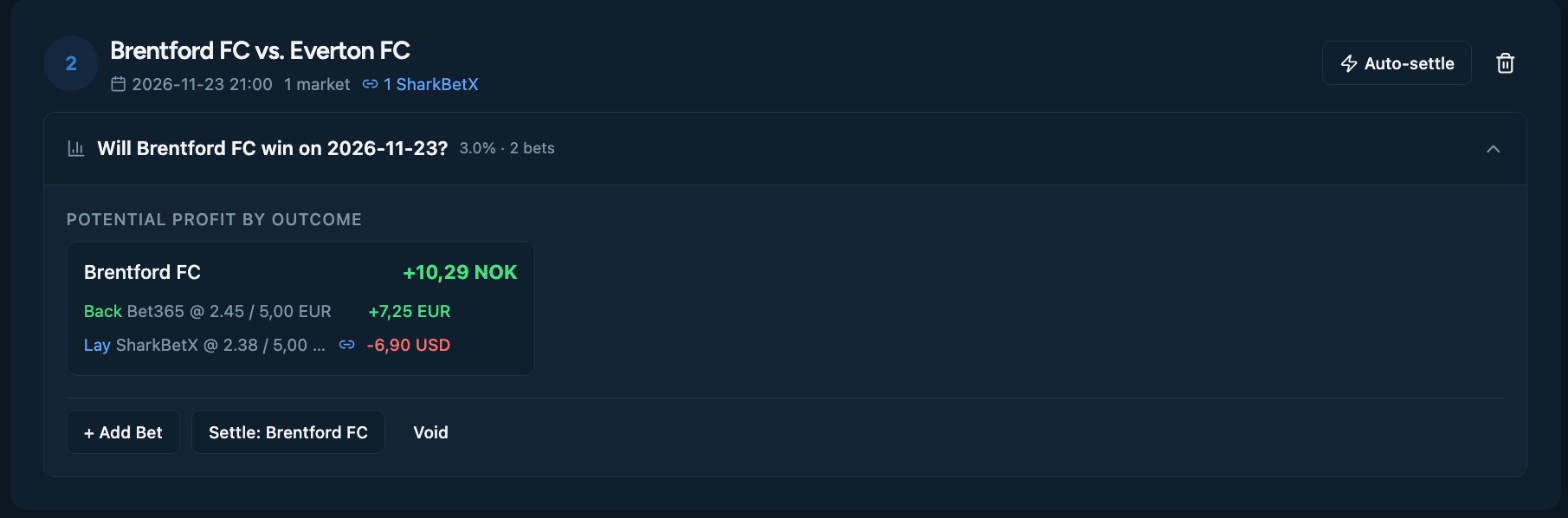
- Match Winner
- Settle as 1, Settle as X or Settle as 2.
- Other markets
- One button per selection you logged, for example Settle: Over 2.5. Click the one that won.
- Called off
- Void returns every stake on the market with no profit or loss.
Good to know
Settling books each bet's profit or loss on its account. The balance in Bankroll moves when a bet is settled, not when it is logged.
Let the tracker settle it
Auto-settle on an event, or Auto-settle all above Open Events, looks up the result and settles the markets it can.
While the Dashboard is open it also checks finished matches by itself. A market settled this way is marked Auto-settled from the result.
When no result is found, the tracker says so and you use the buttons.
SharkBetX bets
They settle from the exchange's own result. Sync SharkBetX in the header fetches them.
Undo or correct a settlement
Reopen Market undoes a settlement. Automatic settlement then stays off for that market until you settle it again.
The three dots on a settled bet change that one bet to won, lost, void or back to pending.
The pencil edits an open bet and the bin deletes a bet.
Record a bonus or a free bet
Where: New bonus, in the header
Click New bonus
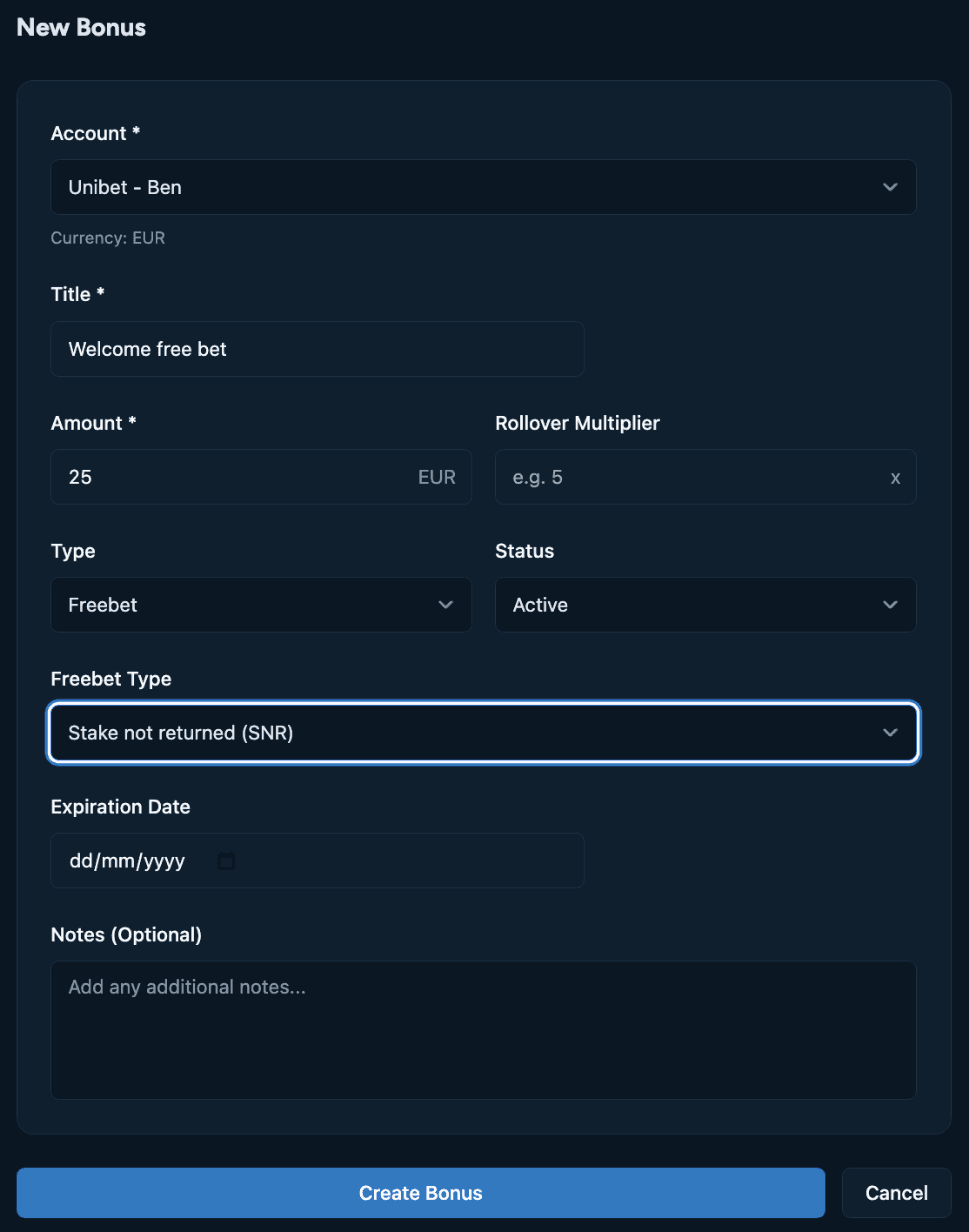
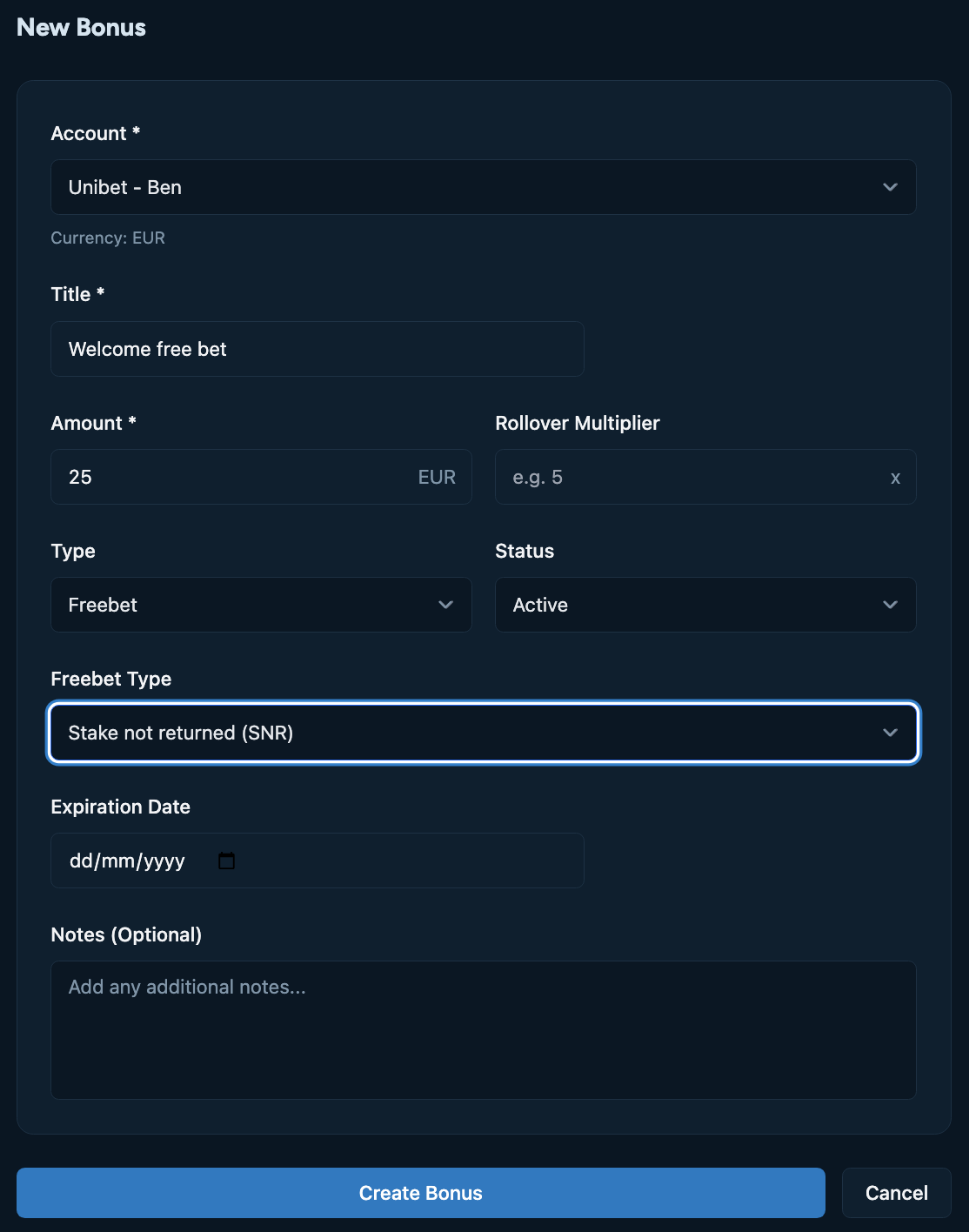
Pick the Account, give the bonus a Title and enter the Amount.
Choose the type
Type is Cash / Reload, Freebet, Weekly Bonus or Monthly Bonus.
For a Freebet also choose the Freebet Type: stake not returned (SNR) or stake returned (SR).
Click Create Bonus
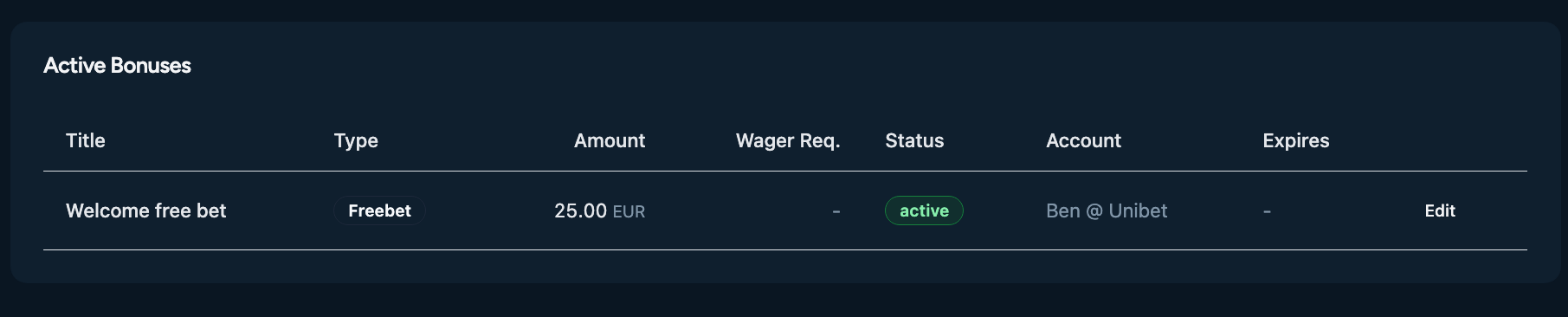
Bonuses that are still running are listed under Active Bonuses on the Dashboard, each with an Edit button.
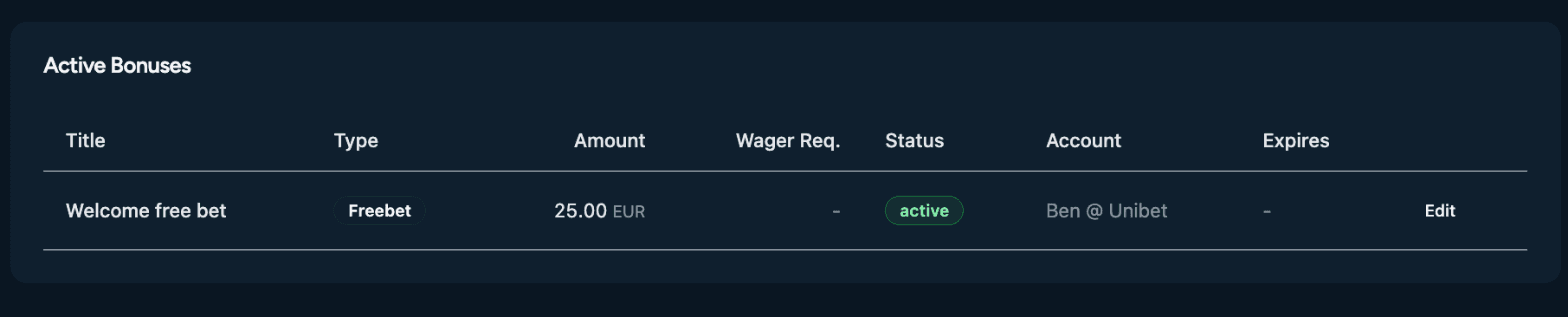
The account reads owner, then bookmaker: Ben @ Unibet. Swipe sideways to see all of it, or tap to open it.
Optional fields
Rollover Multiplier (5 on a bonus of 100 shows 500 to wager), Status, Expiration Date and Notes.
What a bonus does to the balance
A cash, weekly or monthly bonus is added to the account's balance when you create it and counts in your bonus total.
One you set to Cancelled or Expired counts for nothing.
Log a free bet
A free bet is not added to the balance: its value arrives through the bet you place with it.
Record the free bet
New bonus, with Type Freebet and the Freebet Type SNR or SR.
Log the bet you place with it
Log it as usual and set Stake Type to SNR or SR.
How it settles
If it loses, it costs nothing. If it wins, SNR pays the winnings and SR pays the winnings plus the stake.
Record deposits and withdrawals, read balances
Where: Bankroll
Click an account to open it
You see Initial Balance, Total Deposits, Total Withdrawals, Bonuses and Bet P&L.
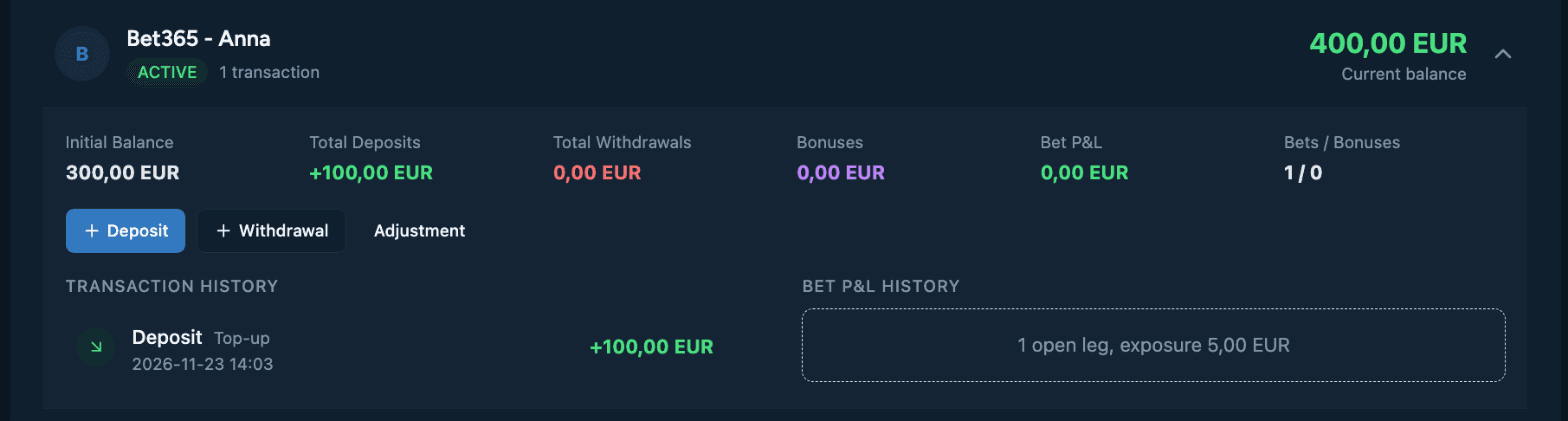
An opening balance of 300 EUR and a deposit of 100 EUR: the balance reads 400 EUR. Swipe sideways to see all of it, or tap to open it. Log the deposit or the withdrawal
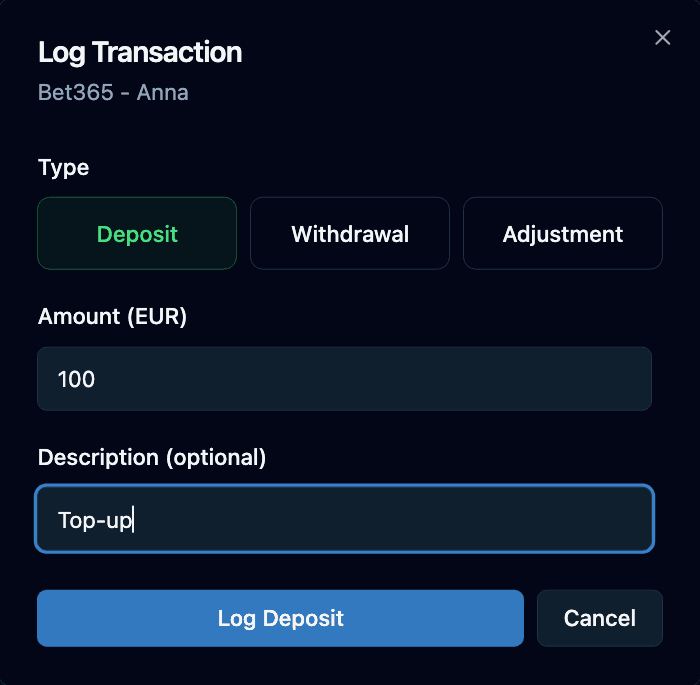
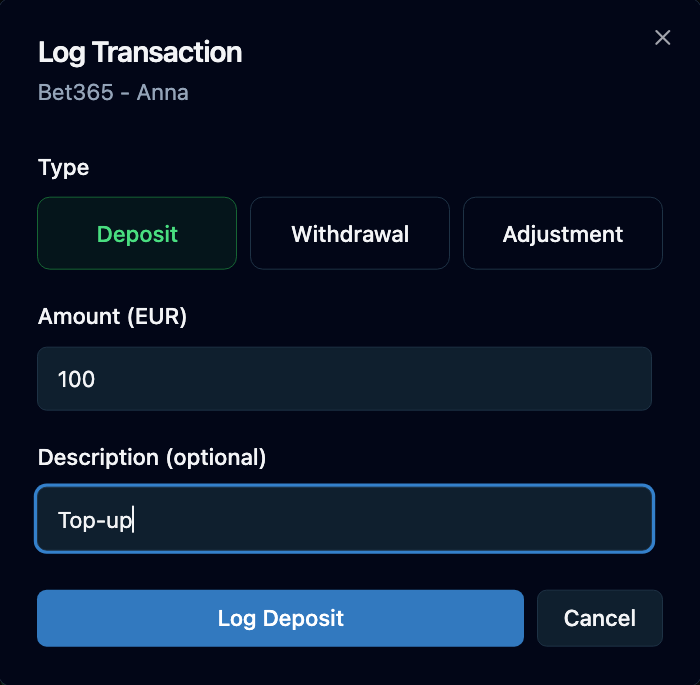
Click Deposit or Withdrawal, enter the Amount and, if you like, a Description.
Then click Log Deposit or Log Withdrawal. The balance changes at once.
Read what happened on the account
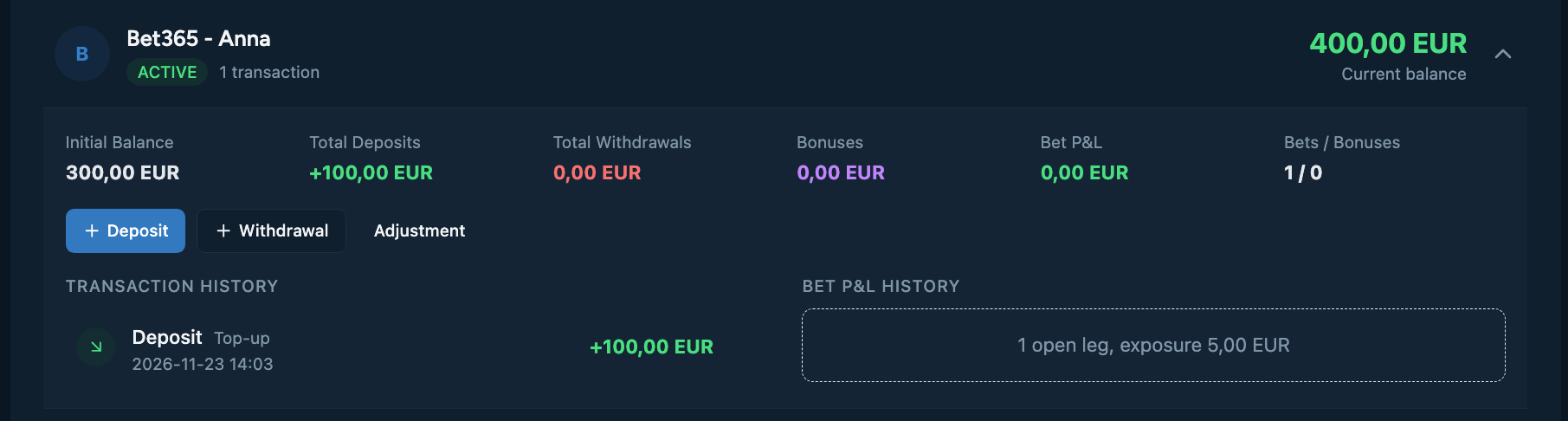
Transaction History lists what you logged. Bet P&L History lists the settled bets on that account.
A correction, not a deposit
Use Adjustment: a positive amount raises the balance, a negative one lowers it.
How the totals at the top are worked out
The tiles (Total Balance, Total Deposits, Total Withdrawals, Total Bonuses, Bet P&L) add up every account that is not closed, in your default currency.
Accounts in another currency are converted at today's rate and keep their own currency in the list. Bankroll over time draws the total as a chart.
A SharkBetX account that follows your wallet
It has no Deposit, Withdrawal or Adjustment buttons.
Track several account holders
The tracker keeps people apart through owners. Get the picture first; every step below follows from it.
Before you start
The tracker is a record. It does not place bets and has no connection to your bookmaker accounts.
Betting through another person's bookmaker account breaks bookmaker terms and conditions, and recording it here does not change that. Read the multi-account betting guide first: it sets out the risks.
How it fits together
Three people, two bookmakers. Magnus is the member himself. Anna and Ben are two people whose accounts he also keeps track of.
- Owner a person
- Account one per bookmaker
- Bets and bonuses, deposits, withdrawals
- Bet365 - Magnus
- Bet365 - Anna
- Unibet - Anna
- Unibet - Ben
- An owner is a person. You are one of them.
- An account is one owner at one bookmaker. Magnus and Anna both at Bet365 are two accounts.
- A bookmaker is added once and used by every owner.
- Everything you log goes on an account, never on a person directly. Picking the right account is what puts a bet on the right person.
Accounts are listed as bookmaker and owner, for example Bet365 - Anna.
Set it up from scratch
Where: Settings
Owners first
On the Owners tab, click Add Owner once for each person, yourself included.
Each bookmaker once
On the Bookmakers tab, click Add Bookmaker for each bookmaker any of you uses. You do not add it again per person.
One account per owner per bookmaker
On the Accounts tab, click Add Account. Pick that person as Owner, then the Bookmaker.
Under Initial Balance, type what is in that person's account today. Repeat for every account: four in the example above.
Anna's account at Bet365, opened with 300 EUR. Swipe sideways to see all of it, or tap to open it. Check the list
The list under Accounts shows every account with its owner in the Label column.
Bankroll now has one row per account, named bookmaker and owner, each with its own balance.
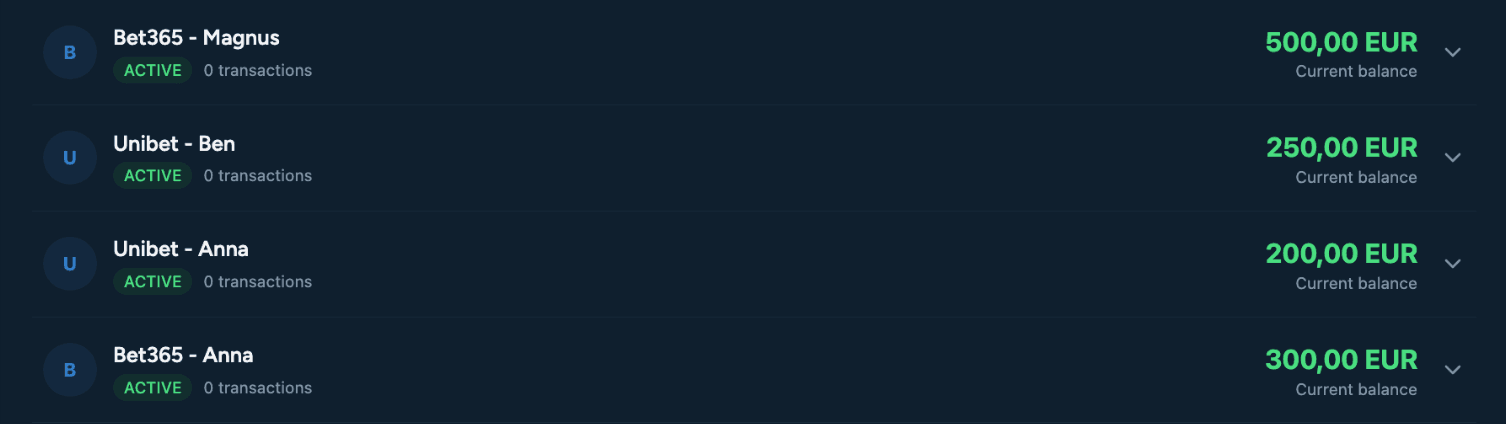
Swipe sideways to see all of it, or tap to open it.
Log on the right account
When you log by hand
In the Add Bet window, Account lists every account by bookmaker and owner. Pick the account of the person whose bet it is.
Good to know
Look at Account on every back bet. It starts on No account. After a bet it stays on the account you last picked, until you switch Side to Lay.
When you log from the Oddsmatcher
In the Log to tracker panel, Account starts on the account at that bookmaker that you logged a bet on most recently. With Magnus and Anna both at Bet365, that can be the wrong person.
The list holds all your bookmaker accounts, each with its owner and currency. Change it before you click Confirm.
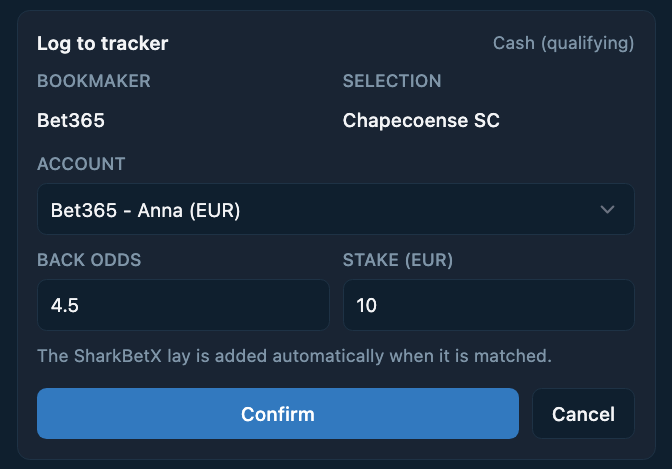
If you confirm with the wrong owner
The bet is booked on that person's account. Their balance and result move when it settles, and the right person's do not. The tracker cannot tell whose bet it was. How to fix it.
Nobody has an account at that bookmaker yet
Account reads New account on that bookmaker, and the account is created under your first owner. If the bet is another person's, add their account in Settings first.
SharkBetX lays
There is one SharkBetX account in the tracker, and it sits under one owner. Lays that arrive from your wallet are booked there, whoever's back bet they cover.
Deposits, withdrawals and bonuses per person
- Deposit or withdrawal
- In Bankroll, click that person's account, for example Bet365 - Anna, then Deposit or Withdrawal. It is booked on that account only.
- Bonus or free bet
- Click New bonus and pick that person's account under Account.
Good to know
The tracker follows bookmaker balances. What you settle between yourselves outside the bookmakers is not recorded in it.
Read each person's result and balance
- Dashboard, Account Performance
- One line per account, with the owner's name under the bookmaker, the number of settled bets and the profit or loss. It shows five accounts; Show all opens the rest.
- Bankroll
- One row per account, each with its own balance, transactions and settled bets.
- Statistics, Owner Overview
- One row per owner with total profit and loss, bets and accounts. Click it for back stakes, bonuses and each of that owner's accounts. A bet without an account counts for the owner of the other bets on its market.
- Statistics, Account Breakdown
- Stakes, bonuses, deposits, withdrawals and profit and loss per account.
- Settings, Owners
- The number of accounts and the total balance per owner.
- CSV exports
- Both files have an owner column, so a spreadsheet can split them per person.

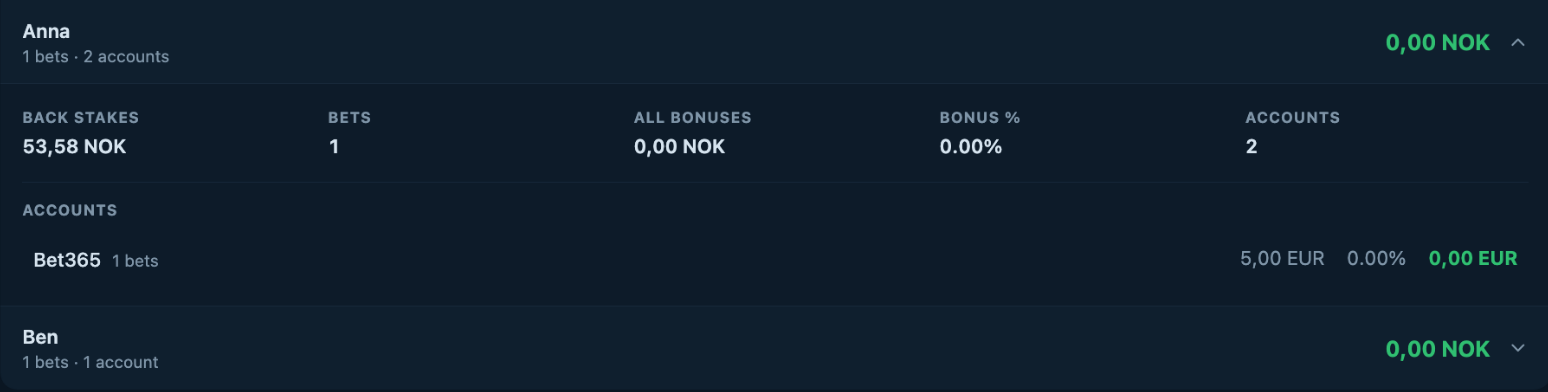
What the tracker does not separate
- The tiles at the top of the Dashboard and of Bankroll are totals across all owners. Those tabs have no owner filter.
- A bet line on an event shows the bookmaker, not the owner. Two people's bets at the same bookmaker look alike there.
- The free plan's limit counts every owner's bets together.
- There is one SharkBetX account, under one owner. The result of every SharkBetX lay sits on it.
So the account you pick when you log is what keeps each person's books right.
Fix something logged on the wrong person
A bet
The pencil on an open bet changes its selection, odds and stake. It cannot move the bet to another account, so you log it again.
Delete the bet
Click the bin on the bet's line and confirm with Delete bet.
Add it again on the right account
Click + Add Bet on the same market and pick the right person's account under Account.
The market is already settled
Deleting a settled bet takes its result back out of the first account's balance.
A bet you add to a settled market is settled as soon as you add it, on the market's result. Result for this bet lets you set it yourself.
A deposit, a withdrawal or a bonus
- Deposit or withdrawal
- In Bankroll, open the account and click the bin on the row under Transaction History. Then log it on the right account.
- Bonus
- Click Edit on the bonus and set Status to Cancelled, so it counts for nothing. Then record it again with New bonus on the right account.
- Account under the wrong owner
- Edit Account cannot change the owner. Add the account again under the right owner and log there from now on.
Read your statistics
Where: Statistics
The tab reads the same bets and bonuses as the rest of the tracker.
- At the top
- Total Bets, Exchange Wagered, Avg Lay Odds, Avg Lay Stake, Return % (profit and loss divided by the amount wagered) and Bonus %.
- Account Breakdown
- Back stakes, weekly and monthly bonuses, deposits and withdrawals, and profit and loss per account.
- Owner Overview
- Profit and loss, bets and accounts per owner.
- Bonus vs Losses
- Whether losing weeks bring more bonus than winning weeks.
- Weekly Performance
- Week by week, Monday to Sunday.
Export and import
Where: Settings, Export / import
- Download bets (CSV)
- Your bets, each with the owner and the bookmaker.
- Download transactions (CSV)
- Your ledger rows, each with the owner and the bookmaker.
- Yearly summary
- One row per month for the Year you pick: deposits, withdrawals, bonuses, bet P&L and closing balance.
The files open in Excel, Numbers or Google Sheets.
Bring in bets from a spreadsheet
Get the format
Under Import bets, click Download template for an example file.
Choose your file
Click Choose CSV file. You see what will be created before you click Import.
What an import does and does not do
An import never changes a balance.
Open bets go on your existing account for that bookmaker and owner. Settled bets come in as history and count in your overall statistics.
SharkBetX bets are skipped because they sync from your wallet. A file can hold 2,000 rows and 500 KB.
The free plan: 50 bets
- What counts
- The tracker holds up to 50 bets. A back bet and its lay are two bets, and SharkBetX bets that sync in count too.
- Where you see it
- Under the header, for example 37 of 50 bets used.
- At the limit
- Adding a bet is refused. Everything you logged stays, and you can still edit, settle, delete and export. Deleting older bets frees room.
- No limit
- Pro has no limit: see the plans.
Something in the tracker does not match this guide? Tell us on the help page.